
Getting Started
Connect your Instagram account
Connect a Business or Creator Instagram account to ZayDM using Instagram Login.
Updated
On this page8 sections
What connecting Instagram enables
Connecting Instagram gives ZayDM permission to work with the Instagram account you choose, so you can build and run automations for comments, messages, Story replies, and other supported workflows.
ZayDM uses Instagram Login through Meta. You approve the connection in the Instagram authorization flow, and ZayDM never asks for your Instagram password.
A Facebook Page is not required for Instagram DM automation in ZayDM.
Before you start
Make sure:
- You are signed in to your ZayDM account and your email is verified.
- The Instagram account you want to connect is a Business or Creator account.
- You can sign in to the correct Instagram account in your browser and approve the requested permissions.
- Your current ZayDM plan has room for another Instagram account if you are connecting a new account.
If you use a Personal Instagram account, convert it to Business or Creator before connecting it to ZayDM.
Connect your Instagram account
- In ZayDM, open Settings.
- Select Connections.
- Choose Connect Instagram.
- Complete Instagram Login and approve the permissions shown by Meta.
- After authorization succeeds, ZayDM returns you to the dashboard and adds the connected Instagram account.
ZayDM product
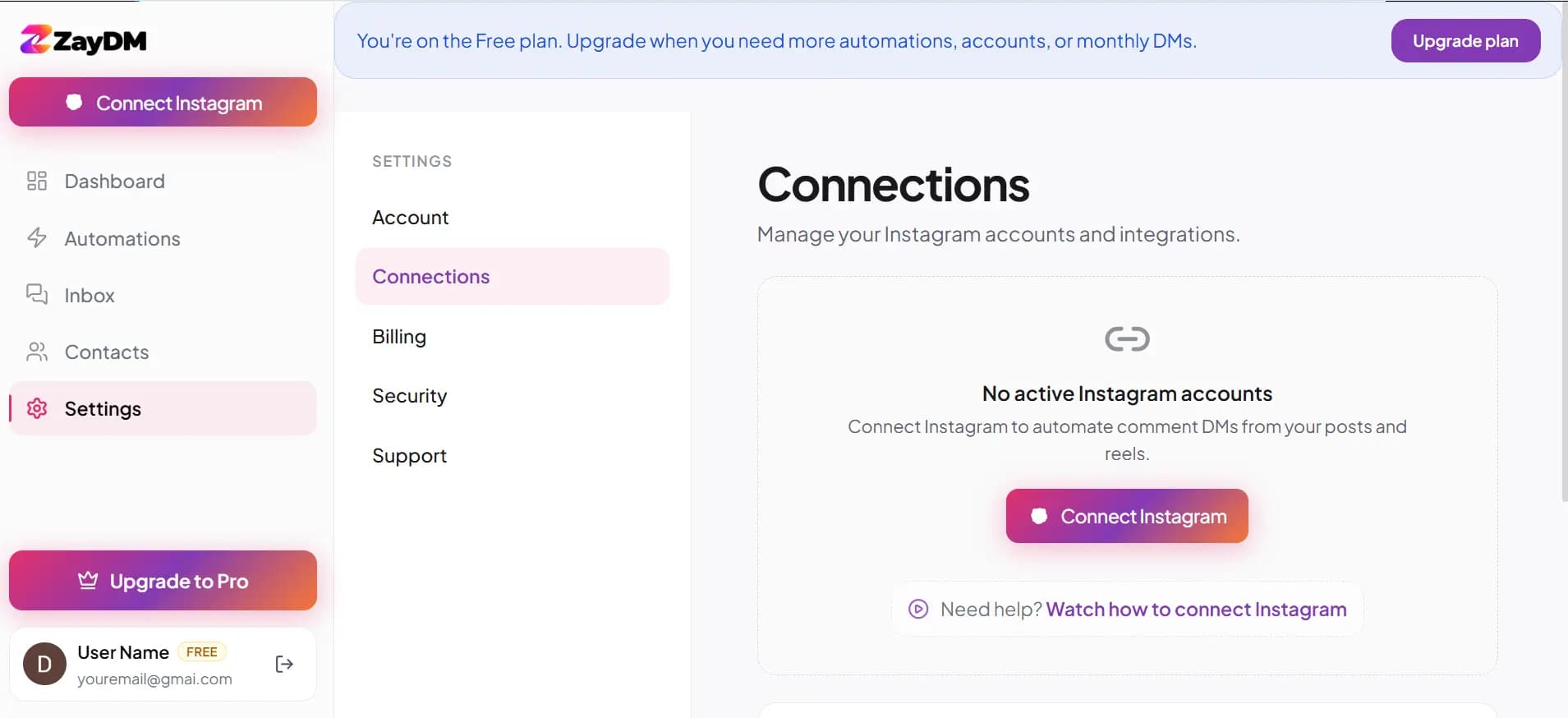
ZayDM does not show a separate Instagram account picker after authorization. The account returned by the Instagram Login flow is the account that gets connected, so make sure you are signed in to the correct Instagram account before you approve access.
Confirm the connection
After a successful connection, the account should appear with a Connected status. You can use the Instagram accounts switcher in the dashboard to select the account you want to work with.
ZayDM product
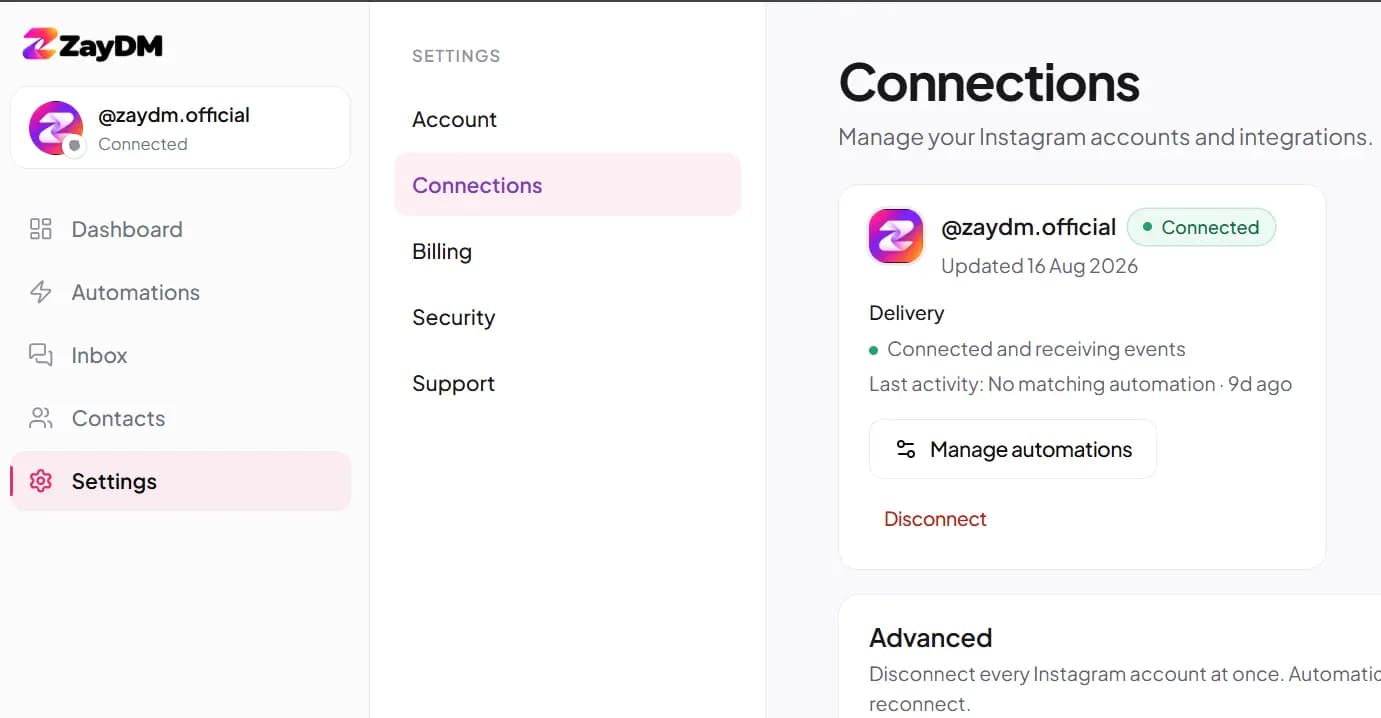
If webhook setup could not be completed, ZayDM may show Connection setup incomplete instead of a fully healthy connection. Use Repair connection or the reconnect option shown in the product before trying to run automations.
Connect another Instagram account
If your plan allows more than one Instagram account, open Settings → Connections and choose Connect another account.
The number of Instagram accounts you can connect depends on your current plan and billing configuration. If you have reached the limit, ZayDM shows Account limit reached. with an Upgrade option.
If the Instagram account is already connected to another ZayDM user, it cannot be connected to your account until that existing connection is resolved.
Reconnect or repair an account
You do not need to disconnect an account before reconnecting it.
If ZayDM shows Needs reconnect, Token refresh failed, or a reconnect action for the account, choose Reconnect @ and complete Instagram Login again.
If the account is connected but event delivery or setup is incomplete, use Repair connection when that action is available.
ZayDM product
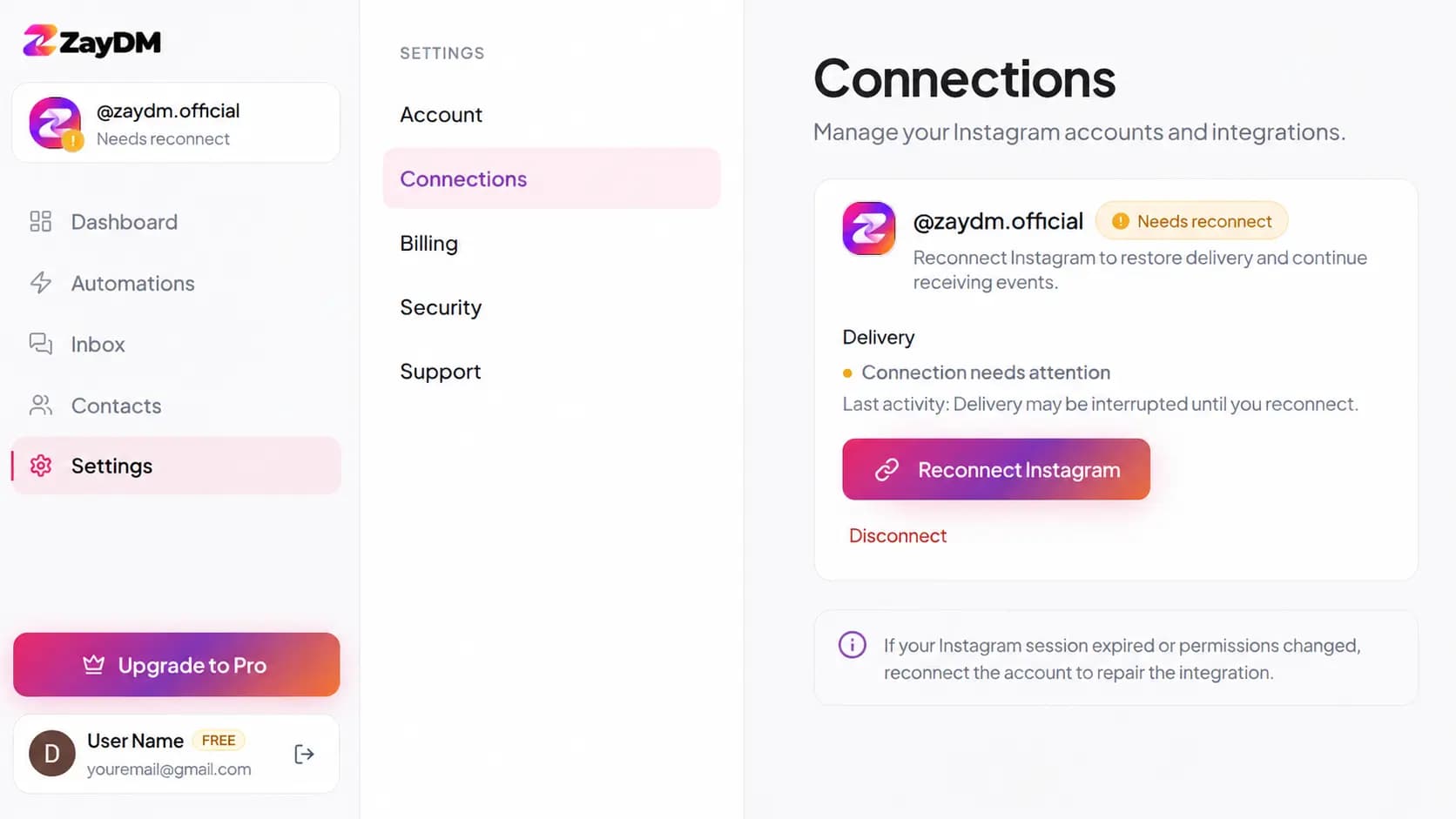
Reconnect is also the right path when Instagram access has expired or been revoked. Reconnecting an existing Instagram account does not count as adding a new account for the purpose of the new-account limit.
Disconnect an account
From Settings → Connections, use Disconnect on the account you want to remove.
ZayDM asks you to confirm with Disconnect account?. Disconnecting removes the stored connection credentials and stops automations for that Instagram account, but the automation rules remain saved.
After disconnecting, the account may no longer appear in the normal Connections list until you connect it again. When you reconnect, review your saved automations and turn them back on if needed.
Common issues
I connected the wrong Instagram account
Disconnect the incorrect account, sign in to the Instagram account you actually want to use, then choose Connect Instagram again.
My account is Personal
ZayDM is designed for Instagram Business and Creator accounts. Convert the account to Business or Creator, then retry the connection.
ZayDM says Account limit reached
Your current plan does not have capacity for another Instagram account. Use the Upgrade action shown in ZayDM if you need additional account capacity.
ZayDM says Needs reconnect or Token refresh failed
Choose Reconnect @ and complete Instagram Login again. You do not need to disconnect the account first.
ZayDM shows Connection setup incomplete
Use Repair connection when available. If the problem remains, reconnect the account and approve the requested permissions again.
My automations stopped after disconnecting
Disconnecting stops automations for that Instagram account but keeps their configuration saved. Reconnect the account, select it from the Instagram accounts switcher, then review and reactivate the automations you still want to run.
Related Help
Still need help?
Could not find the answer you need? Contact the ZayDM support team.