
Getting Started
Create your first automation
Choose a trigger, build the conversation, and activate your first ZayDM automation.
Updated
On this page8 sections
Before you create an automation
Make sure you have a healthy Instagram connection selected in ZayDM.
If no account is selected, ZayDM prompts you to select an Instagram account from the switcher or use Connect Instagram. If the account needs attention, reconnect it before you try to run an automation.
If you still need to connect Instagram, see Connect your Instagram account.
Create a new automation
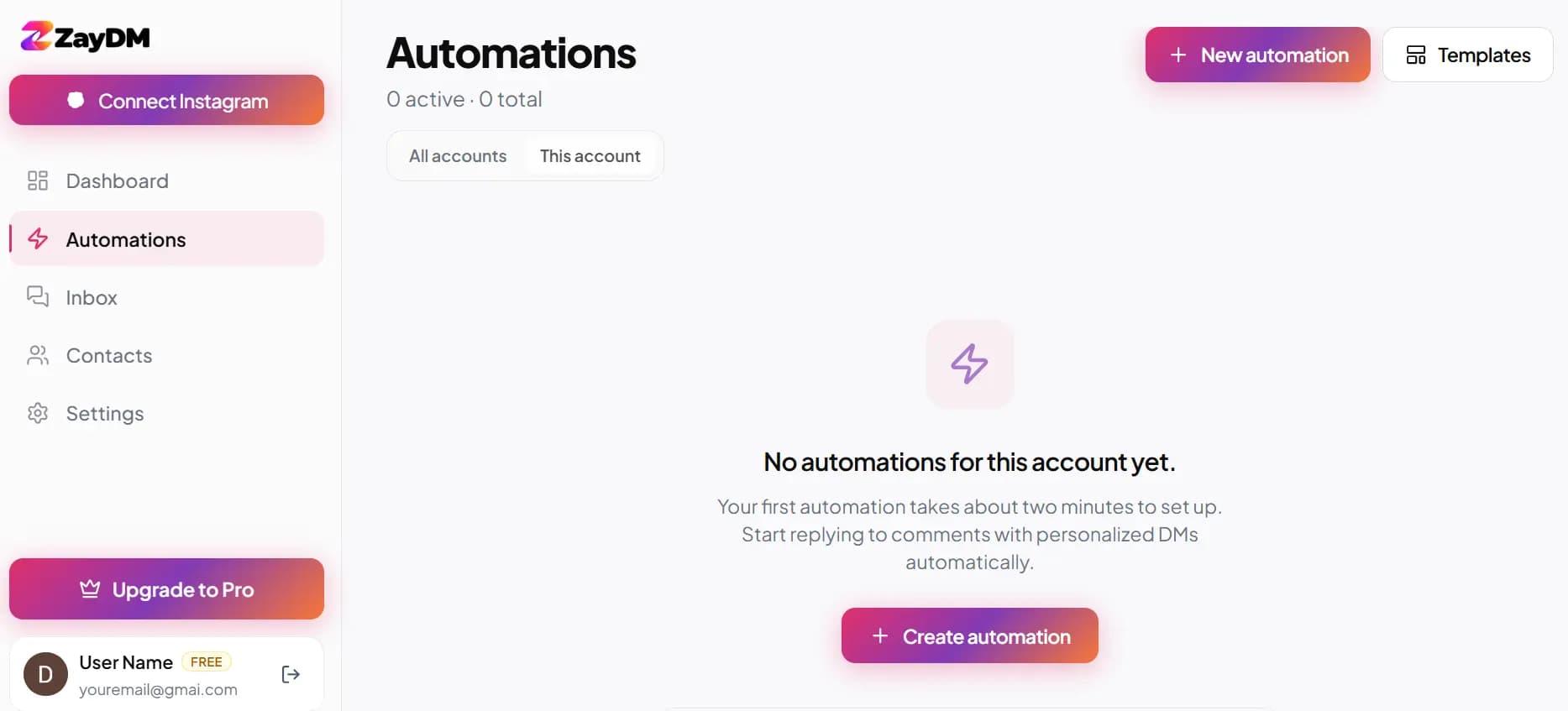
- Open Automations.
- Select New automation.
- Under Choose how your automation starts, choose a trigger.
- Configure the trigger and response steps.
- Select Save Draft.
New automations are created as inactive drafts. Saving the draft does not start the automation.
ZayDM product
Choose how the automation starts
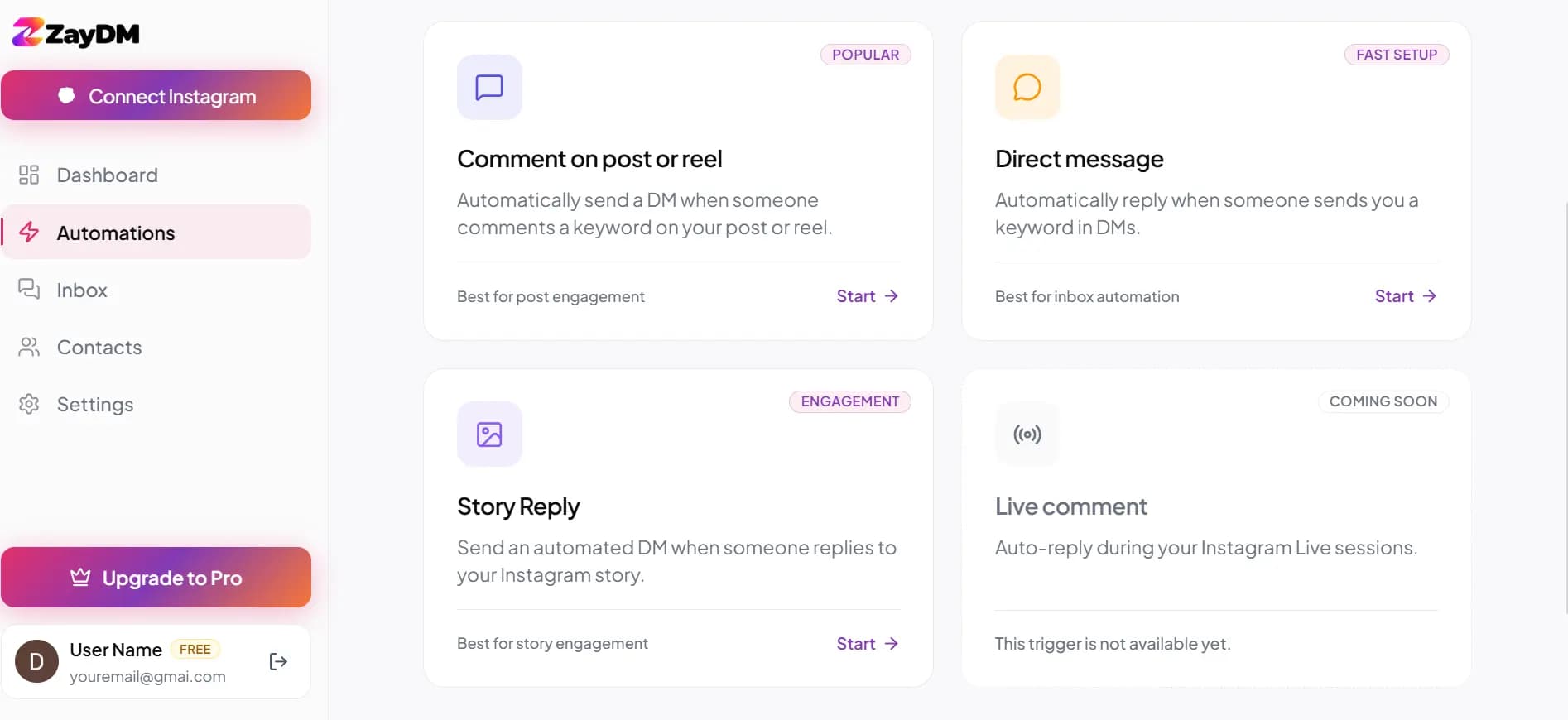
ZayDM currently offers three automation triggers you can configure.
Comment on post or reel
Use Comment on post or reel when you want an automation to start from a comment.
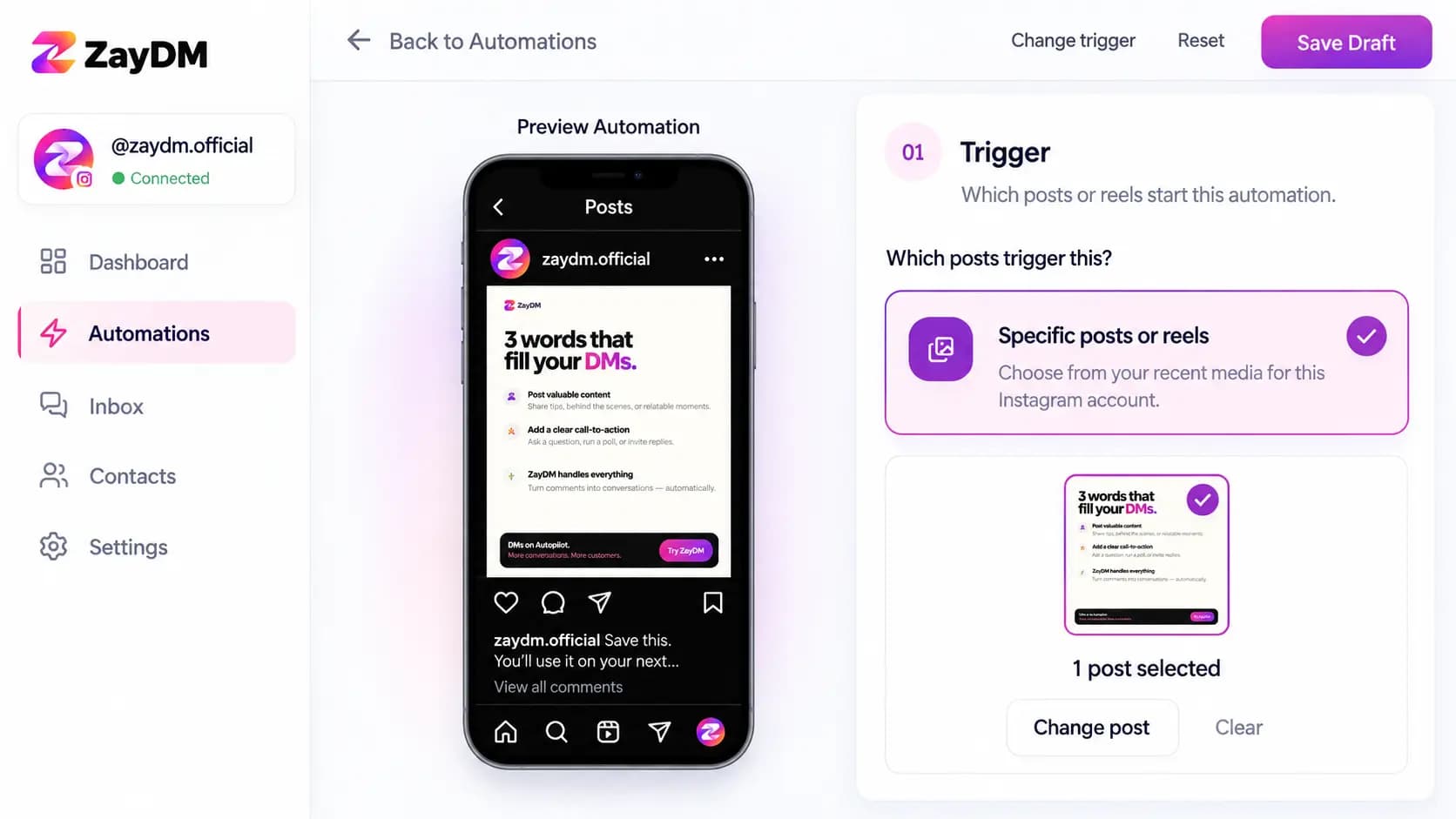
Choose whether it should watch All posts and reels or Specific posts or reels.
Under What keywords trigger this?, add keywords if you only want certain comments to start the automation. Match type supports Any keyword, All keywords, and Exact.
If you leave the keyword list empty, the trigger can match any comment.
See Set up Comment Automation for the full setup.
Direct message
Use Direct message when you want an inbound Instagram DM to start the automation.
You can add keywords and choose Any keyword, All keywords, or Exact. If you leave the keyword list empty, any qualifying inbound DM can match.
For testing, send the DM from another Instagram account.
See Set up DM keyword automation for details.
Story Reply
Use Story Reply when someone replies to an Instagram Story.
Choose Any story or Specific stories, then add keywords only if you want to limit which replies trigger the automation.
Story reactions are not configured as Story Reply triggers, so test with an actual reply to the Story.
See Set up Story Reply automation for the full setup.
ZayDM product
Configure the trigger
The trigger controls which Instagram activity starts the automation.
For Comment Automation, check both the selected posts and What keywords trigger this?. For Direct message and Story Reply, confirm the keyword rules match what people will actually send.
If you are using Specific posts or reels or Specific stories, make sure the content you plan to test is included.
Build the response
After the trigger, configure what ZayDM should send.
For Comment Automation, you can optionally add a Public reply.
The next part of the flow can include:
- Opening Message, which can be turned On or Off
- Follow Gate, which requires Opening Message to be On
- Send them a DM, where you add the main response
- Smart Follow-Ups, if you want follow-up steps and your plan includes them
Use Add response under Send them a DM to choose Text message or Card message.
For card buttons, you can configure a Destination with Paste URL or Upload file. Card images can use Paste URL or Upload image.
If Opening Message is On, ZayDM waits for the recipient to tap Continue before moving to the main response. If Follow Gate is also enabled, that step happens after Continue.
The flow is:
Trigger → Opening Message → Continue → optional Follow Gate → Send them a DM
If Opening Message is Off, ZayDM can send the main DM directly after the trigger.
For Comment Automation, you need at least a DM response or a Public reply before the automation can be saved and started. Direct message and Story Reply automations need at least one response.
Save the draft and start the automation
When you first create the automation, select Save Draft.
After the draft is created, you can continue editing it and use Save changes.
When the setup is ready, select Start Automation.
Saving and starting are separate actions. Save Draft and Save changes do not activate the automation.
While the automation is active, the editor shows Active and the configuration is locked. Use Stop Automation if you need to edit it again.
Some plan-gated features can be configured while the automation is inactive. ZayDM checks eligibility when you try to start the automation. If a feature is not available on your plan, follow the Upgrade or Review billing action shown in the dashboard.
ZayDM product
Test your first automation
Use another Instagram account for a clean test.
For a Comment Automation:
- Confirm the automation is active.
- Comment on a targeted post or reel.
- Use a keyword that matches the configured rule, or leave keywords empty if you want any comment to match.
- If Opening Message is On, tap Continue.
- Complete Follow Gate if it is enabled.
- Confirm the main DM arrives.
For Direct message, send a new DM from another Instagram account and make sure it matches the keyword rule.
For Story Reply, reply to a supported Story from another account rather than sending a normal DM.
If the automation does not run, see Automation not triggering.
Common issues
I saved the automation but nothing happens
A saved draft is not active. Open the automation and select Start Automation.
I cannot start the automation
Check the validation message shown in ZayDM. The automation may be missing required response content, using a feature that is not included on your current plan, or beyond your active automation allowance.
My comment does not trigger anything
Check All posts and reels versus Specific posts or reels, then verify What keywords trigger this? and the selected Match type.
The Opening Message arrived but the main DM did not
If Opening Message is On, the recipient must tap Continue before ZayDM moves to the main response. If Follow Gate is enabled, that step may also need to be completed first.
I cannot edit an active automation
Active automations are locked for editing. Use Stop Automation, make your changes, save them, then start the automation again.
Related Help
Still need help?
Could not find the answer you need? Contact the ZayDM support team.